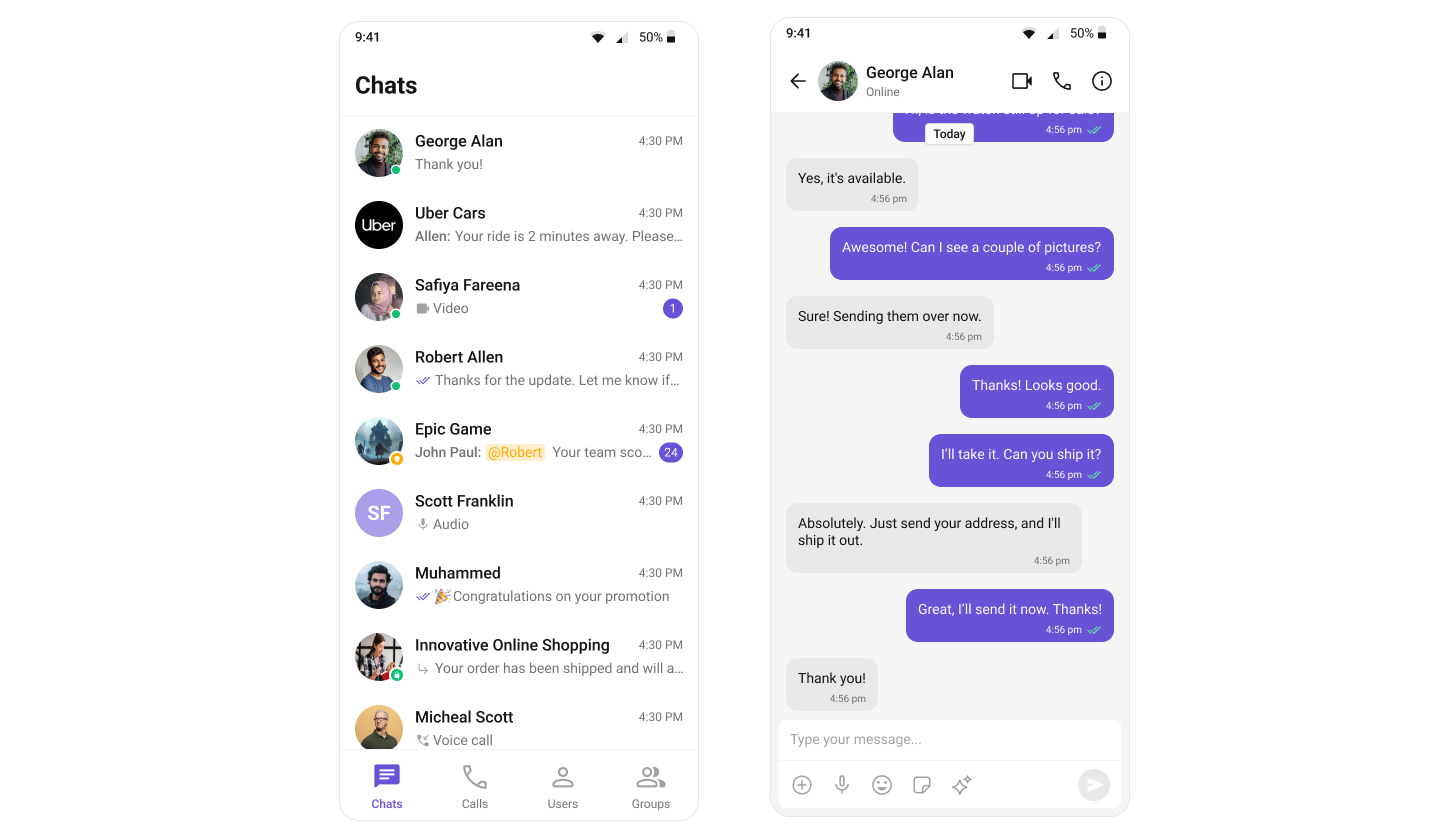
import 'package:flutter/material.dart';
import 'package:cometchat_chat_uikit/cometchat_chat_uikit.dart';
import 'package:cometchat_calls_uikit/cometchat_calls_uikit.dart';
import 'messages_screen.dart';

class TabsScreen extends StatefulWidget {
  const TabsScreen({super.key});

  @override
  State<TabsScreen> createState() => _TabsScreenState();
}

class _TabsScreenState extends State<TabsScreen> {
  int _selectedIndex = 0;
  final PageController _pageController = PageController();

  void _onItemTapped(int index) {
    setState(() => _selectedIndex = index);
    _pageController.jumpToPage(index);
  }

  @override
  void dispose() {
    _pageController.dispose();
    super.dispose();
  }

  @override
  Widget build(BuildContext context) {
    return Scaffold(
      body: PageView(
        controller: _pageController,
        onPageChanged: (index) => setState(() => _selectedIndex = index),
        children: [
          CometChatConversations(
            onItemTap: (conversation) {
              final target = conversation.conversationWith;
              Navigator.push(
                context,
                MaterialPageRoute(
                  builder: (_) => MessagesScreen(
                    user: target is User ? target : null,
                    group: target is Group ? target : null,
                  ),
                ),
              );
            },
          ),
          CometChatCallLogs(),
          CometChatUsers(
            onItemTap: (user) => Navigator.push(
              context,
              MaterialPageRoute(builder: (_) => MessagesScreen(user: user)),
            ),
          ),
          CometChatGroups(
            onItemTap: (group) => Navigator.push(
              context,
              MaterialPageRoute(builder: (_) => MessagesScreen(group: group)),
            ),
          ),
        ],
      ),
      bottomNavigationBar: BottomNavigationBar(
        type: BottomNavigationBarType.fixed,
        currentIndex: _selectedIndex,
        onTap: _onItemTapped,
        selectedItemColor: Colors.deepPurple,
        unselectedItemColor: Colors.grey,
        items: const [
          BottomNavigationBarItem(icon: Icon(Icons.chat), label: "Chats"),
          BottomNavigationBarItem(icon: Icon(Icons.call), label: "Calls"),
          BottomNavigationBarItem(icon: Icon(Icons.person), label: "Users"),
          BottomNavigationBarItem(icon: Icon(Icons.group), label: "Groups"),
        ],
      ),
    );
  }
}