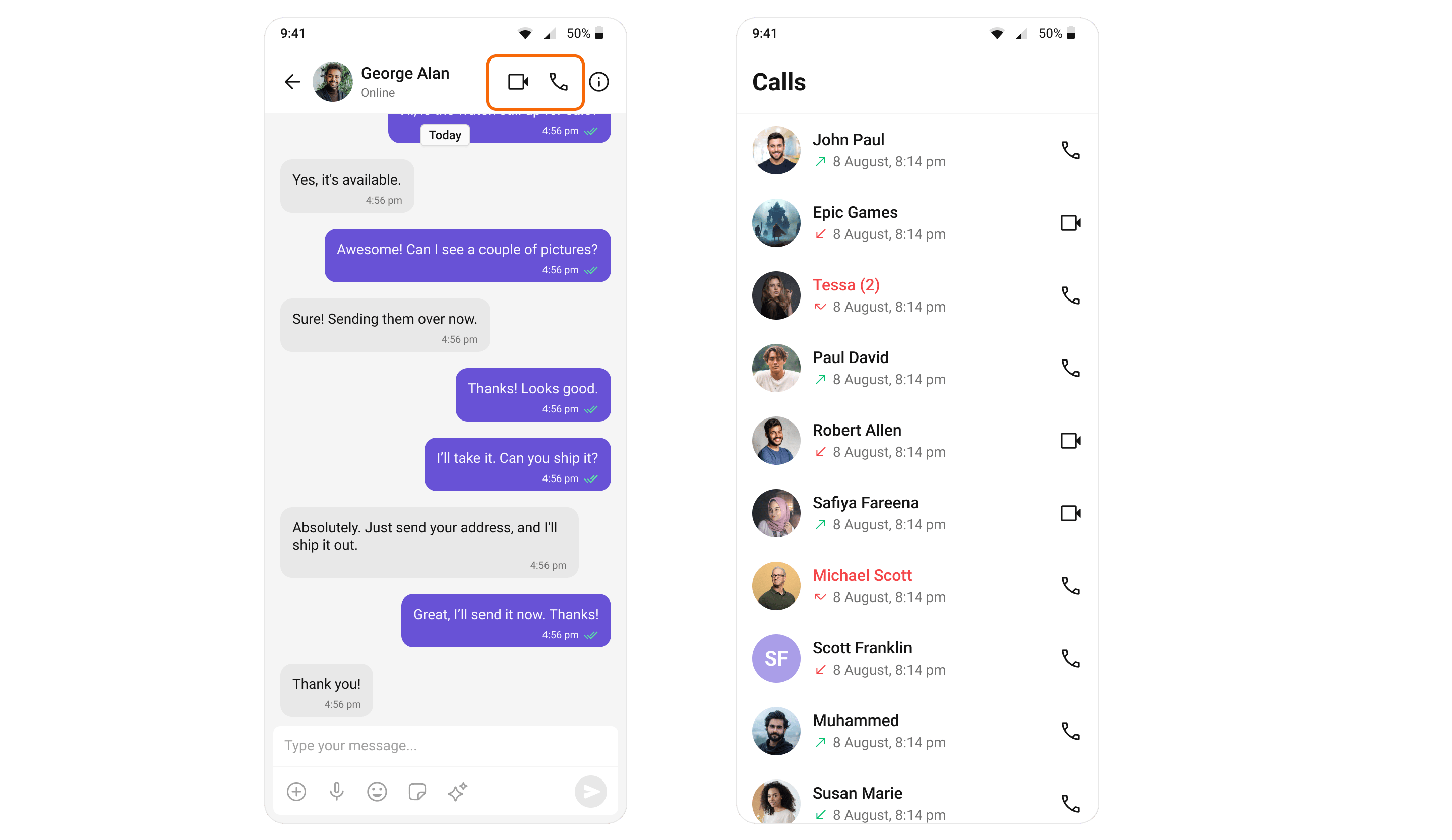
Overview
This guide walks you through adding voice and video calling capabilities to your Flutter application using the CometChat UI Kit.Make sure you’ve completed the Getting Started guide before proceeding.
Step 1: Add Dependency
Add the following dependency to yourpubspec.yaml file:
Step 2: Update Android build.gradle
If your Flutter project’s minimum Android SDK version is below API level 24, update it inandroid/app/build.gradle:
Step 3: Update iOS Podfile
Inios/Podfile, update the minimum iOS version to 12:
Step 4: Enable Calling in UIKitSettings
Modify the UIKitSettings to activate calling features usingcallingExtension:
Step 5: Set Up Incoming Call Navigation
To allow launching the Incoming Call screen from any widget, provide theCallNavigationContext.navigatorKey in your top-level widget:
Verify Integration
After adding the dependency, the Flutter UI Kit will automatically detect it and activate calling features. You will see CallButtons rendered in the MessageHeader widget.