

AI Integration Quick Reference
AI Integration Quick Reference
| Field | Value |
|---|---|
| Package | @cometchat/chat-uikit-react |
| Framework | React Router |
| Components | CometChatConversations, CometChatCallLogs, CometChatUsers, CometChatMessageHeader, CometChatMessageList, CometChatMessageComposer |
| Layout | Tabbed sidebar (Chat, Calls, Users) + message view |
| Prerequisite | Complete React Router Integration first |
| SSR | N/A — client-side SPA by default |
| Pattern | Full-featured messaging app with multiple sections |
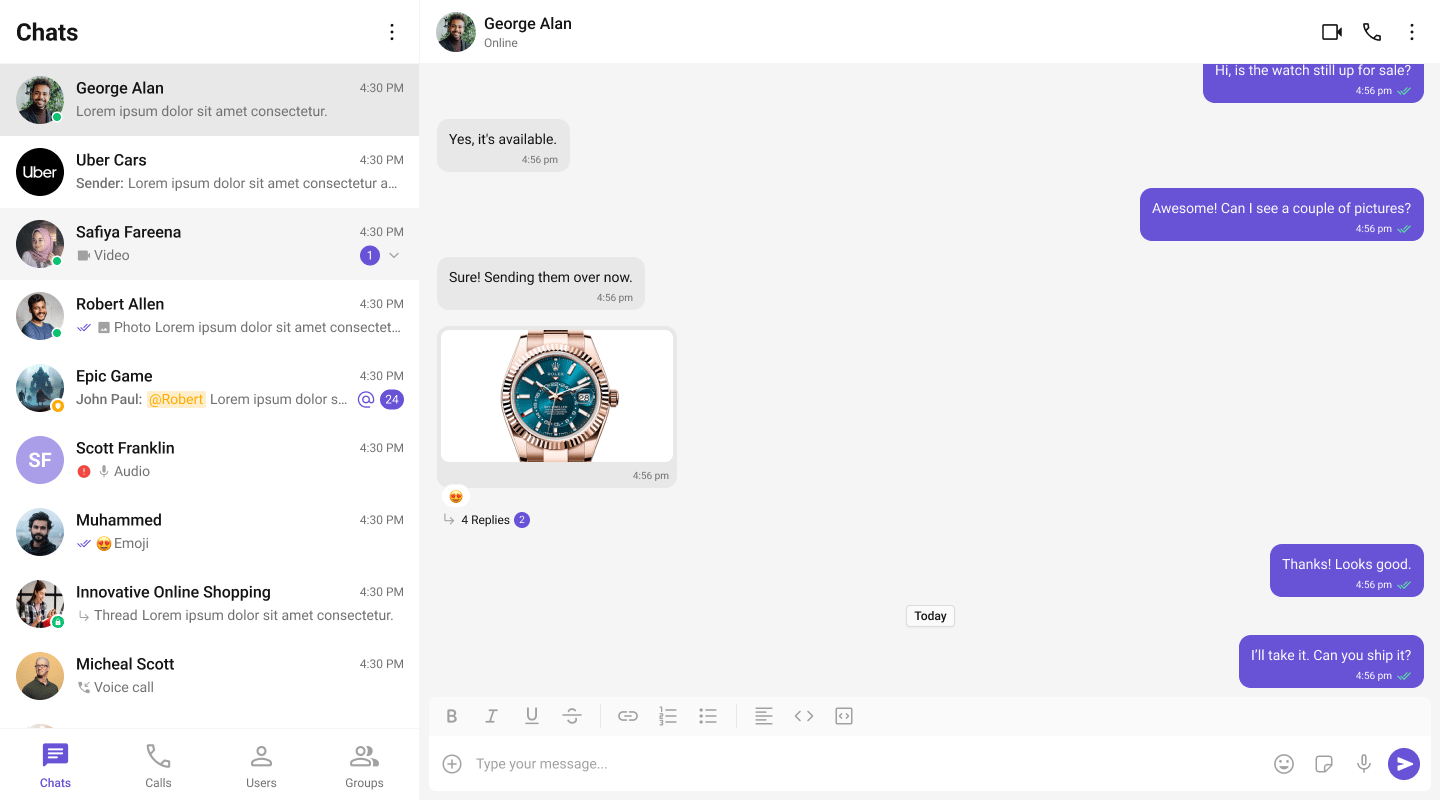
What You’re Building
Three sections working together:- Tab bar — switches between Chat, Calls, and Users
- Sidebar — renders the list for the active tab
- Message view — header + messages + composer for the selected item
Full Code
Create a route component for the tabbed chat page. Init and login are completed insrc/main.tsx (see React Router Integration).
src/pages/TabbedChatPage.tsx
src/pages/TabbedChatPage.css
App.tsx:
src/App.tsx
How It Works
- Tab state —
activeTabcontrols which list component renders in the sidebar. - Conditional rendering — only the active tab’s component mounts. Switching tabs unmounts the previous list and mounts the new one.
- Unified selection — all three tabs feed into the same
selectedUser/selectedGroupstate. Clicking any item (conversation, call log, or user) updates the message panel. - Call log handling — when a call log is clicked, the receiver (user or group) is extracted and passed to the message components.
- React Router handles navigation — the tabbed chat page is a route component at
/chat.
Adding More Tabs
To add a Groups tab, importCometChatGroups and add another tab button + conditional render:
Run
http://localhost:5173/chat. You should see the tab bar at the top of the sidebar. Switch between Chats, Calls, and Users — clicking any item loads the message view on the right.
Next Steps
Conversation List + Messages
Two-panel layout without tabs
Components Overview
Browse all prebuilt UI components
Theming
Customize colors, fonts, and styles