

AI Integration Quick Reference
AI Integration Quick Reference
| Field | Value |
|---|---|
| Package | CometChatUIKitSwift |
| Framework | UIKit / SwiftUI |
| Components | CometChatConversations, CometChatCallLogs, CometChatUsers, CometChatGroups, CometChatMessageHeader, CometChatMessageList, CometChatMessageComposer |
| Layout | UITabBarController with Chats, Calls, Users, Groups tabs |
| Prerequisite | Complete iOS Integration Steps 1–4 first |
| Pattern | Full-featured messaging app with multiple sections |
UITabBarController. Good for full-featured apps that need more than just conversations.
This assumes you’ve already completed iOS Integration (project created, UI Kit installed, init + login working, permissions configured).
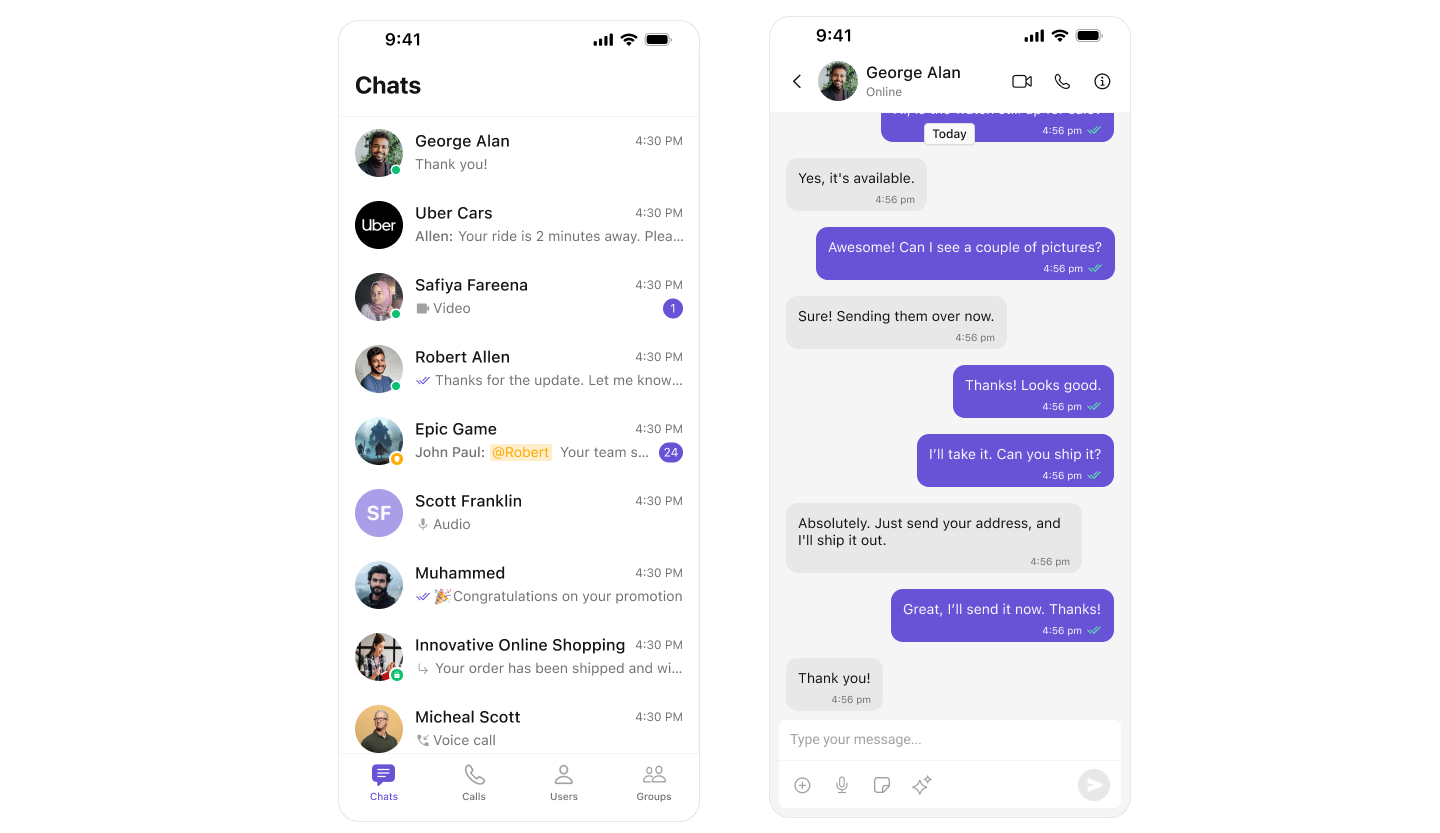
What You’re Building
Four tabs working together:- Chats — conversation list with push navigation to messages
- Calls — call logs history
- Users — list of available users
- Groups — list of available groups
Step 1 — Setup SceneDelegate
Initialize CometChat and launch the tabbed view after login.SceneDelegate.swift
Step 2 — Setup Tab Bar
Create theUITabBarController with all four tabs. Each tab has its own navigation controller.
SceneDelegate.swift
- Each tab wraps its view controller in a
UINavigationControllerfor push navigation onItemClickon conversations pushes to the messages viewhidesBottomBarWhenPushed = truehides the tab bar when viewing messages- SF Symbols are used for tab icons — customize as needed
Step 3 — Create MessagesVC
Create a new Swift file for the messages view controller:- In Xcode, right-click your project folder in the Navigator
- Select New File…
- Choose Swift File and click Next
- Name it
MessagesVC.swiftand click Create
MessagesVC.swift
Step 4 — Run the Project
Build and run in Xcode. You should see the tab bar at the bottom with Chats, Calls, Users, and Groups. Tap any conversation to push to the messages view.Next Steps
Theming
Customize colors, fonts, and styles to match your brand
Components Overview
Browse all prebuilt UI components
iOS Integration
Back to the main setup guide
Core Features
Chat features included out of the box