

AI Integration Quick Reference
AI Integration Quick Reference
| Field | Value |
|---|---|
| Components | CometChatConversations, CometChatCallLogs, CometChatUsers, CometChatGroups |
| Layout | Tabbed bottom navigation (Chats, Calls, Users, Groups) |
| Prerequisite | Complete Kotlin Integration or Jetpack Compose Integration Steps 1–3 first |
| Pattern | Full-featured messaging app with multiple sections |
What You’re Building
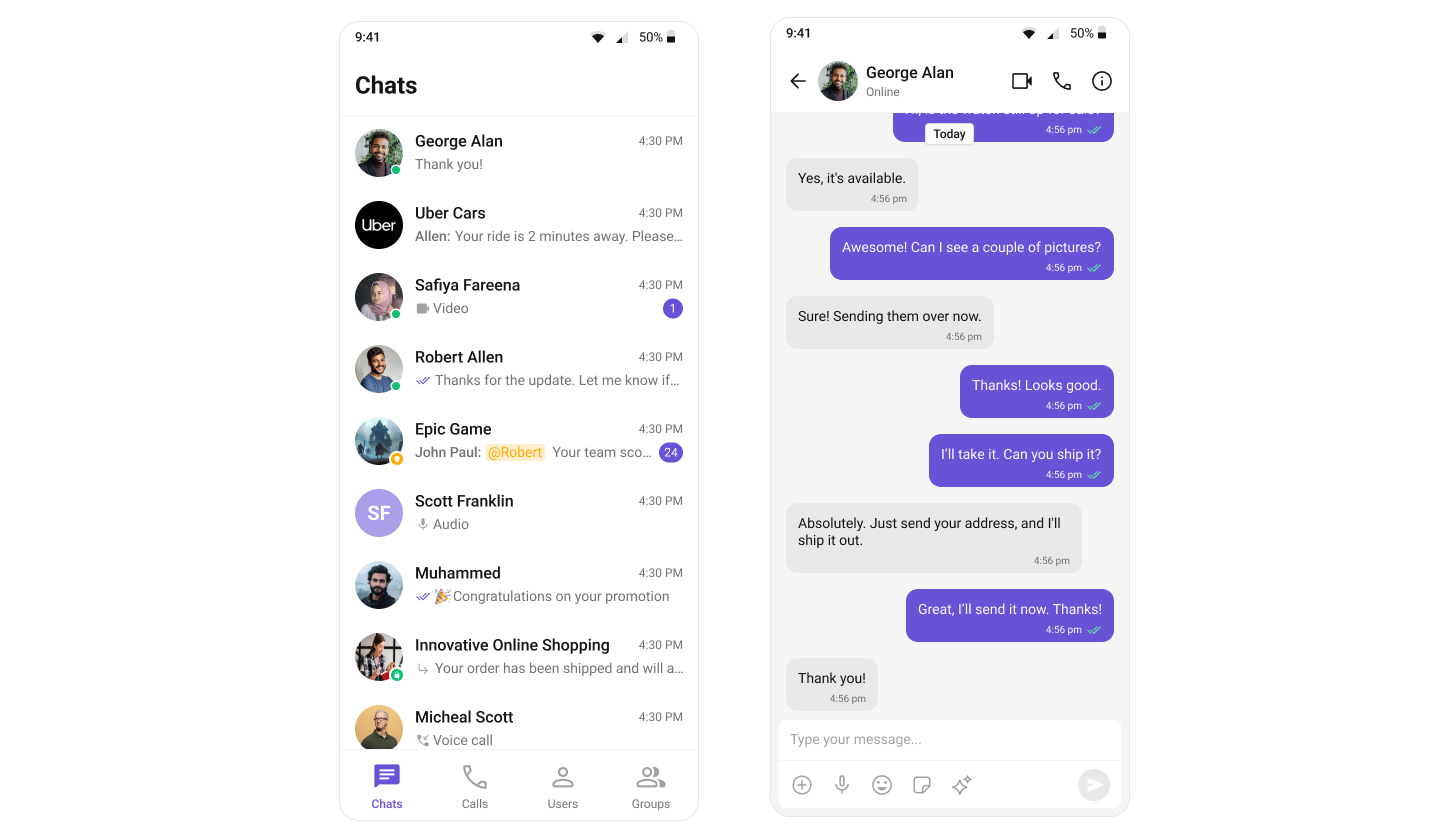
- Bottom navigation bar — switches between Chats, Calls, Users, and Groups
- Content area — renders the CometChat component for the active tab
- Kotlin (XML Views)
- Jetpack Compose
This uses Android’s
BottomNavigationView with Fragments: TabbedActivity hosts the navigation and fragment container, user taps a tab, the corresponding Fragment loads.Step 1: Set Up the Tabbed Screen
- Kotlin (XML Views)
- Jetpack Compose
Create a new Activity called Menu — Activity —
TabbedActivity with BottomNavigationView.Layout — activity_tabbed.xml:activity_tabbed.xml
res/menu/bottom_nav_menu.xml:bottom_nav_menu.xml
TabbedActivity.kt:TabbedActivity.kt
Step 2: Create Tab Content
- Kotlin (XML Views)
- Jetpack Compose
Create a Fragment for each tab. Each Fragment inflates a layout containing the corresponding CometChat component.ChatsFragment:CallLogsFragment:UsersFragment:GroupsFragment:
ChatsFragment.kt
fragment_chats.xml
CallLogsFragment.kt
fragment_call_logs.xml
UsersFragment.kt
fragment_users.xml
GroupsFragment.kt
fragment_groups.xml
Download the navigation icons from the CometChat UI Kit repository and place them in your
res/drawable/ directory.Step 3: Launch the Tabbed Screen
- Kotlin (XML Views)
- Jetpack Compose
Launch
TabbedActivity from your MainActivity after successful login:MainActivity.kt
Step 4: Register Activity & Permissions
- Kotlin (XML Views)
- Jetpack Compose
Add the activity to your
AndroidManifest.xml:AndroidManifest.xml
AndroidManifest.xml:
AndroidManifest.xml
AndroidManifest.xml
Next Steps
Components Overview
Explore all available UI Kit components and their customization options
Theming
Customize colors, fonts, and styles to match your brand
Integration
Back to the main integration guide
Feature Guides
Add capabilities like threaded messages, blocking, and group management